
Editorial Technical Solution: When you need to Fix 4K Video Stuttering on Windows 11, hardware acceleration configuration is paramount. Specifically, this guide explains how to eliminate dropped frames, micro-stutters, and audio desync across 4K HDR and 8K 60FPS video files. In addition, we review how Piludi Media Player utilizes direct GPU silicon decoding to render high-bitrate HEVC, AV1, and VP9 video with zero dropped frames on any modern PC.
When you need to Fix 4K Video Stuttering on Windows 11, traditional software decoders often fall short. Almost every PC user has encountered the frustrating experience of downloading a pristine 4K 60FPS video or high-bitrate drone recording, only to suffer from choppy playback, audio desynchronization, and frozen frames. The CPU fan spins up loudly. The system cursor stutters across the screen. Furthermore, dialogue quickly drifts out of sync with actors’ lips. Most standard players fail because they rely on outdated CPU software decoding routines instead of dedicated GPU silicon pipelines.
Why High-Bitrate 4K & 8K Videos Stutter: The CPU Decoding Bottleneck
To resolve stuttering video effectively, you must first examine the physics of modern video compression. A raw, uncompressed 4K video stream at 60 frames per second requires over 12 gigabits per second of raw data throughput. Therefore, camera manufacturers and streaming platforms encode video using sophisticated compression codecs such as HEVC (H.265), Google VP9, and AOMedia AV1.
These advanced codecs employ inter-frame prediction, discrete cosine transforms, and context-adaptive binary arithmetic coding. When your media player opens a file, it must reconstruct 60 full-resolution 3840×2160 images every single second. If your media player attempts to perform these mathematical matrix transforms on standard CPU execution cores, processor utilization instantly spikes to 100%. Consequently, when the CPU cannot calculate a frame within the mandatory 16.6-millisecond render window, it simply drops the frame. As a result, your eyes perceive distracting micro-stutter and frame judder.
The Direct3D 11 & DXVA2 Breakthrough: Hardware Silicon Pipelines
Modern graphics processors from Intel, AMD, and NVIDIA feature dedicated, hardwired silicon blocks engineered specifically for video bitstream processing. For example, NVIDIA includes the dedicated NVDEC engine, Intel incorporates Intel Quick Sync Video fixed-function hardware, and AMD equips Radeon graphics with the Video Core Next (VCN) architecture.
To access these hardware silicon blocks on Windows, software must implement the Microsoft DirectX Video Acceleration (DXVA2) and Direct3D 11 API Specifications. When hardware acceleration is correctly configured, the CPU merely passes compressed bitstream packets directly to the GPU video engine. The dedicated graphics silicon decodes the macroblocks in parallel in less than 2 milliseconds. Therefore, CPU utilization drops below 3%, battery life doubles on laptops, and playback remains butter-smooth even at 8K resolutions.
The Codec Pack Nightmare: Why Third-Party Packs Damage Windows
When users experience choppy video, their instinct is often to search the web and install third-party codec bundles such as K-Lite or Shark007. However, installing bloated legacy codec packs introduces severe system instabilities:
- DirectShow Merit Hijacking: Third-party installers overwrite native Windows Media Foundation merit values, forcing system video calls through unoptimized legacy 32-bit filters.
- Registry Bloat and DLL Hell: Codec packs install hundreds of conflicting dynamic link libraries, frequently causing Windows Explorer thumbnail crashes.
- Uncontrolled Background Utilities: Many free codec packs bundle background update services, tray icons, and unvetted telemetry demons that consume system memory.
- Sub-Optimal Color Space Conversion: Legacy filters frequently clip 10-bit HDR video down to 8-bit SDR range, producing noticeable color banding in dark scenes.
Windows 10 & 11 Native Architecture
Experience Butter-Smooth 4K & 8K Playback with Piludi Media Player
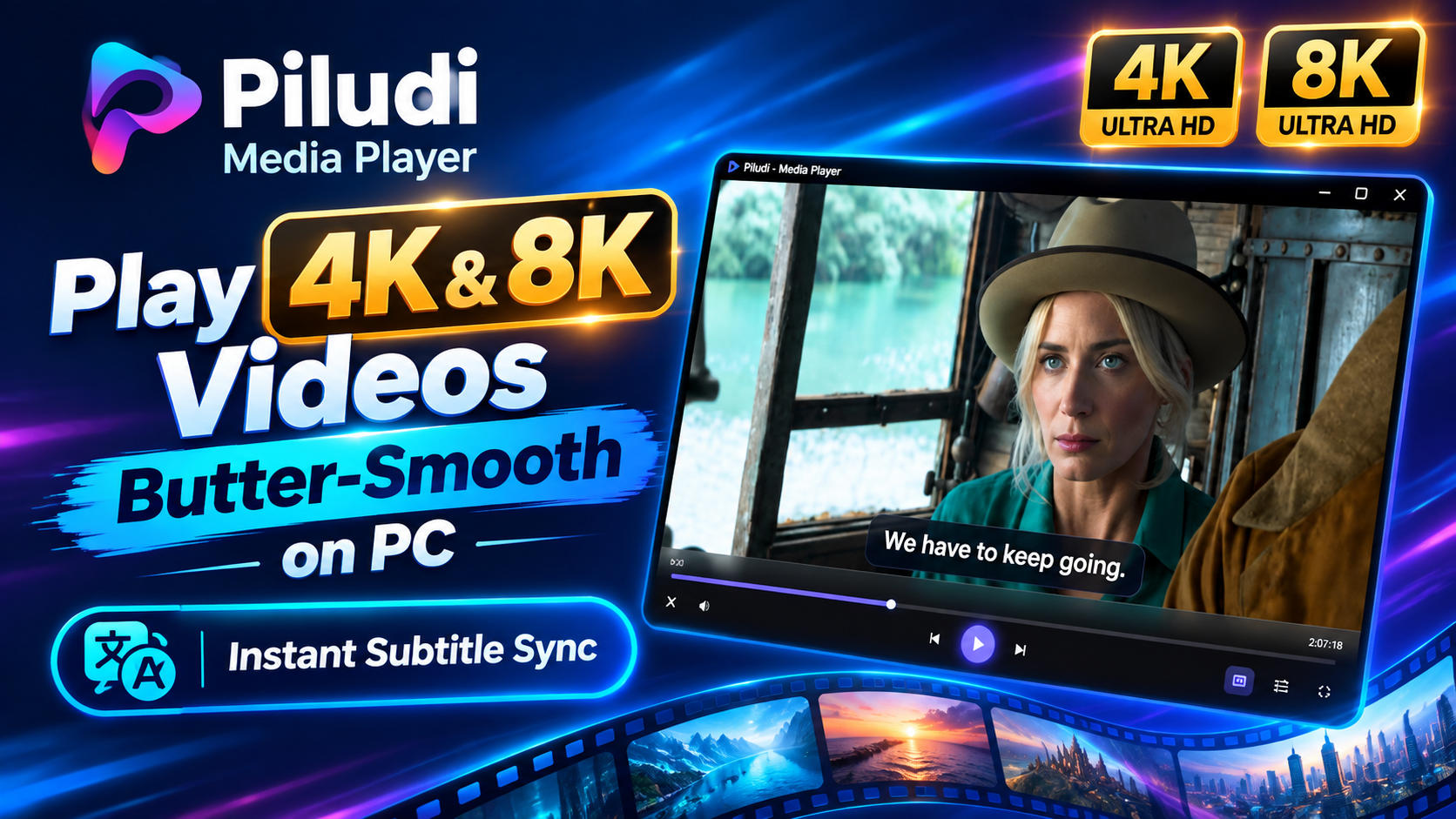
Play 4K 60FPS, 8K, 10-bit HDR, and high-bitrate MKV video without stuttering, frame drops, or audio sync drift. Powered by an integrated Direct3D 11 silicon pipeline that requires zero external codec packs.
Eliminating Audio Desync: The Precision Presentation Timestamp Clock
Audio desynchronization is one of the most annoying playback artifacts. In a multimedia container such as Matroska (MKV) or MP4, audio and video streams are stored as separate packets tagged with Presentation Time Stamps (PTS).
When a video decoder struggles to keep up with high-bitrate video, it falls behind the system audio clock. Most basic players continue to play the audio stream smoothly while letting the video trail behind. Piludi Media Player incorporates an intelligent master clock synchronization algorithm. Specifically, it monitors clock drift down to sub-millisecond precision. Furthermore, if a buffer underrun occurs, the engine performs micro-adjustments to the video presentation timeline, locking audio, video, and ASS/SRT subtitles in perfect harmony.
Step-by-Step Blueprint: How to Fix 4K Video Stuttering on Windows 11
Follow this direct engineering workflow to eliminate video stuttering and frame drops on your Windows 10 or 11 system:
Launch Piludi Media Player & Verify Hardware Acceleration
Open Piludi – Media Player on your PC. Navigate to Settings > Video Decoder. Verify that Hardware Acceleration (D3D11 / DXVA2) is toggled on. In addition, ensure your dedicated GPU (NVIDIA RTX, AMD Radeon, or Intel Arc) is selected as the primary rendering device.
Configure Display Refresh Rate & VSync Matching
Stuttering often occurs when a 24FPS cinematic movie is displayed on a 60Hz monitor without proper 3:2 pulldown compensation. Enable Display Match Frame Rate inside Piludi Media Player to automatically synchronize your monitor’s refresh rate to the exact native frame rate of the video.
Adjust Sub-Millisecond Audio & Subtitle Offset
If your video file has existing internal timeline drift from poorly synchronized audio encodings, use hotkeys [ and ] to fine-tune audio offset in 50ms increments. Furthermore, press Z and X to shift subtitle delay until dialogue aligns with lips.
Technical Comparison: Piludi Media Player vs Traditional Players
The following matrix illustrates how architectural differences directly impact real-world playback performance:
Frequently Asked Questions Regarding 4K Playback Optimization
Why does my 4K video play smoothly in a web browser but stutter in desktop players?
Web browsers such as Google Chrome and Microsoft Edge enforce hardware GPU acceleration by default through modern Direct3D 11 pipelines. Many legacy desktop players, however, default to older DirectShow video renderers that fail to utilize your graphics card’s decoding silicon. Piludi Media Player addresses this by utilizing the same modern Direct3D 11 silicon pipeline natively.
Can older laptops with integrated Intel HD Graphics play 4K 60FPS video?
Yes. Most Intel Core processors manufactured since 7th Generation (Kaby Lake) include fixed-function silicon decoders for 10-bit HEVC and VP9 video. By configuring Piludi Media Player to leverage Intel Quick Sync Video via DXVA2, even lightweight ultrabooks can play 4K 60FPS files with minimal CPU load and no stuttering.
Does Piludi Media Player support Dolby Atmos and DTS-HD audio pass-through?
Yes. Piludi Media Player supports digital bitstream pass-through via HDMI and optical S/PDIF connections. This enables your external AV receiver or soundbar to decode multi-channel Dolby Atmos, TrueHD, and DTS-HD Master Audio bitstreams directly without downmixing or loss of dynamic range.
Explore the Complete DesignoFly Software Ecosystem
Discover lightweight, privacy-focused Windows utilities built for creative professionals, developers, and power users. From lossless media players to document converters, experience local desktop speed.