

Editorial Technical Solution: When you need to Convert WebP to PNG on Windows, retaining full alpha transparency is crucial. Specifically, this technical guide explains how to batch convert hundreds of WebP graphics into uncompressed 32-bit PNGs or high-quality JPEGs using Piludi Image Converter on Windows 11—executed 100% offline with zero cloud latency and complete asset security.
When you need to Convert WebP to PNG on Windows, desktop incompatibility creates severe production roadblocks. You download an essential product photo or graphic illustration from the web to incorporate into a presentation or Photoshop mockup. But when you drag the file into your creative software, you are met with an unsupported document error. Furthermore, shady web converter websites cap your uploads, crush image quality, and replace transparent backgrounds with solid black boxes. In contrast, local desktop conversion processes massive image folders instantly while retaining full transparency.
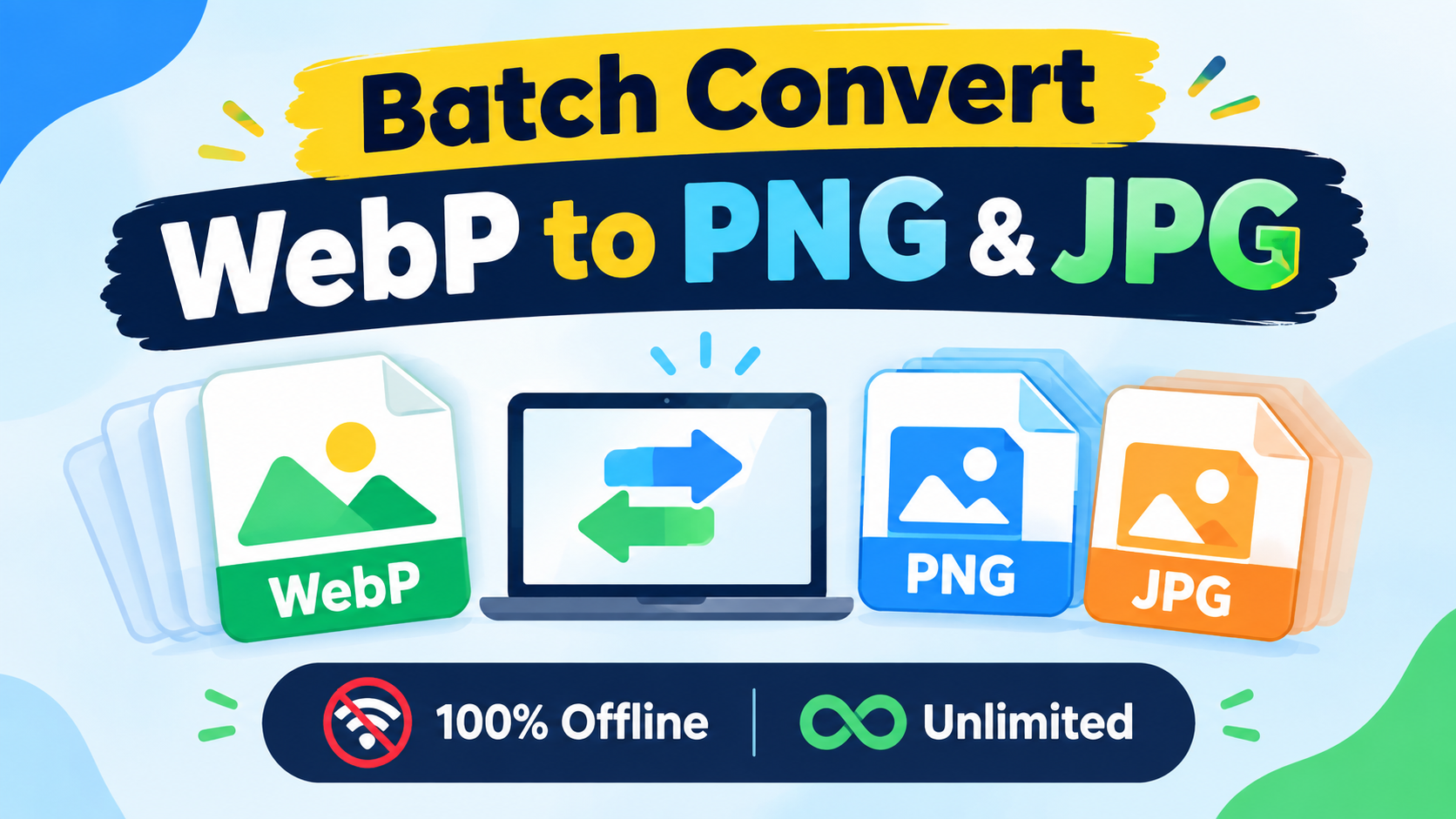
The WebP Dilemma: Superior Web Compression vs Desktop Incompatibility
Engineered by Google in 2010 based on the Google Developers WebP Container Specification, WebP was designed to accelerate web delivery. By utilizing predictive block coding, WebP achieves file sizes up to 34% smaller than equivalent PNGs while retaining comparable visual fidelity. Because page speed heavily influences search rankings, web developers worldwide have systematically replaced traditional assets with WebP.
However, the desktop software ecosystem has lagged behind the browser world. Legacy desktop suites, including older versions of Photoshop, CorelDRAW, InDesign, and Microsoft Office, lack native WebP decoding libraries. Therefore, when graphic designers and marketing teams need to edit web graphics, WebP files become a significant obstacle.
WebP vs PNG vs JPG: Bit Depth, VP8 Encoding & Alpha Channel Mechanics
To successfully transcode WebP into standard formats without quality loss, one must understand format internals. Specifically, WebP supports two distinct compression modes:
- Lossy WebP: Uses intra-frame prediction techniques to divide images into macroblocks and discard imperceptible color frequencies.
- Lossless WebP: Employs spatial transformations and color indexing to compress pixel data without discarding any information.
- 32-Bit RGBA Alpha Channel: WebP embeds an independent 8-bit alpha mask. Basic web utilities flatten this channel during decoding, replacing transparent areas with solid black.
In contrast, Piludi uses a native 32-bit RGBA decoding pipeline. Consequently, when converting to PNG, it maps the alpha channel directly into standard PNG transparency chunks. Therefore, floating logos and soft drop shadows remain crisp and transparent.
Batch Workflow Automation for Graphic Designers & E-Commerce
For graphic designers and e-commerce managers, handling image pipelines manually is impossible. When preparing hundreds of product mockups, converting images one by one through browser tabs wastes hours of productive time.
Fortunately, Piludi provides a zero-friction desktop automation engine. You can drag and drop entire directory trees into the processing window. Furthermore, the engine preserves source directory hierarchies, strips unnecessary web metadata, and exports clean high-resolution PNGs ready for desktop publishing.
The Cloud Danger: Why Uploading Client Assets Destroys Confidentiality
When creative teams need to convert visual assets, uploading files to random web portals introduces severe liabilities:
- Client NDA Violations: Unreleased product graphics and proprietary brand concepts uploaded to web servers breach non-disclosure agreements.
- Severe Batch Caps: Web portals restrict free users to small file batches and compress high-resolution graphics unless you purchase paid subscriptions.
- Bandwidth Latency: Uploading hundreds of megabytes over an internet connection takes significant time, whereas local desktop computing executes in seconds.
Multi-Core Windows 11 Image Transcoder
Batch Convert WebP to PNG with True Alpha Transparency
Convert hundreds of WebP files into uncompressed 32-bit PNGs or high-quality JPEGs with zero quality loss. Retain full alpha transparency, preserve color profiles, and process massive folders locally with Piludi Image Converter.
Step-by-Step Blueprint: How to Convert WebP to PNG on Windows 11
Follow this direct technical workflow to Convert WebP to PNG on Windows 11 in seconds:
Import WebP Graphics into the Batch Queue
Launch Piludi – Image Converter on your Windows 10 or 11 computer. Drag and drop your WebP image files directly into the batch conversion window.
Choose Target Format (PNG or JPG) & Quality
Select PNG to preserve complete transparent backgrounds and lossless pixel fidelity. Alternatively, select JPG for standard photographs.
Execute Batch Conversion & Import into Photoshop
Click Convert All. Piludi distributes decoding and encoding across CPU cores, processing hundreds of images in seconds. Discover more tools in the DesignoFly Studio Software Hub.
Frequently Asked Questions (FAQ)
Does converting WebP to PNG reduce image quality?
No. Specifically, PNG is a mathematically lossless compression format. Converting WebP to PNG decompresses pixel values without applying secondary lossy degradation.
Why do some WebP images convert with a black background in other tools?
This occurs when inferior converters fail to process the 8-bit alpha channel, defaulting transparent pixels to RGB black. In contrast, Piludi preserves the full 32-bit RGBA channel structure.
How many images can I convert at one time?
There are no artificial batch limits. You can import and convert thousands of images in a single session using your local hardware.
Can I convert PNG images into Windows icon (.ico) files?
Yes. Piludi includes dedicated Windows ICO export capabilities, generating multi-resolution icon bundles with alpha transparency.
Is an internet connection required to convert images?
No. Piludi operates 100% offline directly on your Windows PC. Your personal photos and visual assets never touch external servers.
Build a Universal Image Conversion Studio on Windows 11
Stop fighting WebP incompatibility and slow cloud upload limits. Download Piludi – Image Converter for Windows 10 and 11 to batch convert WebP, RAW, HEIC, PNG, and JPG files locally with total desktop privacy.