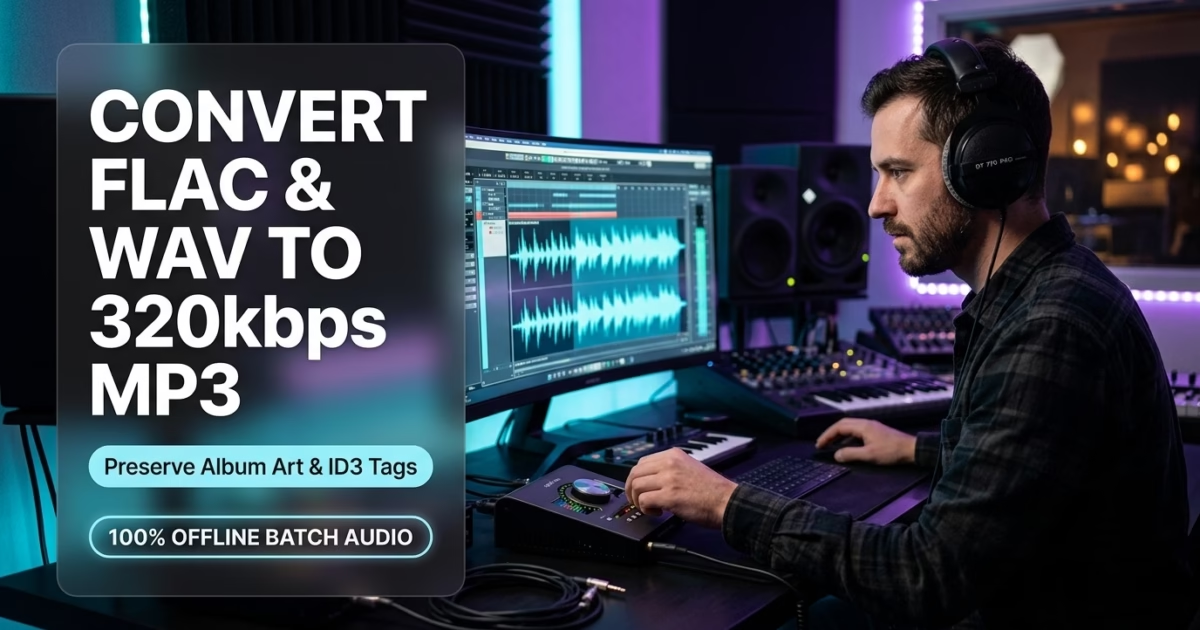
Editorial Technical Solution: When you need to Convert FLAC to MP3 on Windows, maintaining acoustic transparency is vital. Specifically, this comprehensive guide details how to execute batch audio transcoding locally at maximum 320kbps CBR bitrate while preserving critical ID3 metadata, track numbers, and embedded cover art using Piludi Audio Converter on Windows 10 and 11.
When you need to Convert FLAC to MP3 on Windows, ordinary conversion utilities frequently strip metadata. For music collectors, podcasters, sound designers, and audiophiles, lossless audio formats like FLAC, WAV, and Apple Lossless represent the pinnacle of fidelity. A single high-resolution album, however, can easily consume upwards of two gigabytes of storage. When attempting to sync audio to a vehicle stereo or mobile phone, these large containers often fail to play. Furthermore, standard converters scramble track sequences and strip album cover artwork. Fortunately, native desktop transcoding resolves this without sacrificing fidelity.
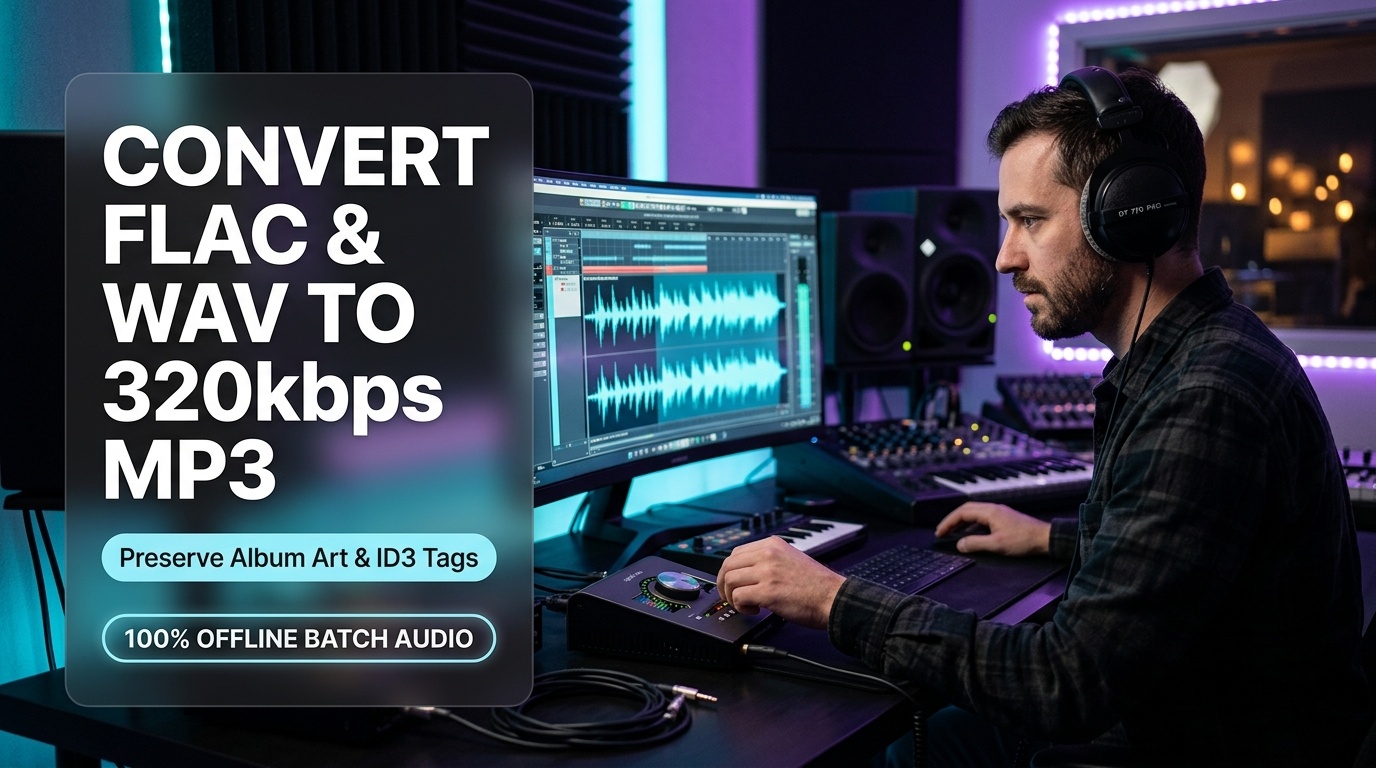
The Psychoacoustic Science of 320kbps MP3 Encoding
The MP3 format operates on the principles of psychoacoustics—the study of psychological and physiological auditory perception. Unlike uncompressed PCM audio which records every wave fluctuation 44,100 times per second, MP3 uses algorithms engineered to discard auditory data beneath human perception.
Specifically, the encoder applies auditory masking. When a loud acoustic stimulus occurs simultaneously with a quiet sound at an adjacent frequency, the brain only processes the louder stimulus. Cheap utilities cut high frequencies above 16kHz, introducing metallic phasing. In contrast, Piludi utilizes modern LAME MP3 Encoding Architecture at Constant Bitrate 320kbps. Therefore, it maintains full acoustic frequency response up to 20.5kHz.
Audio Psychoacoustics & Bitrate Science: Why 320kbps CBR Trumps 128kbps
To appreciate why 320kbps is revered across the audio community, consider the Fletcher-Munson equal-loudness contours. Human hearing is acutely sensitive between 2kHz and 5kHz, but drops off sharply at the extremes. Cheap 128kbps converters slice away all harmonics above 16kHz. Consequently, room reverberation collapses and stereo imaging flattens.
While Variable Bitrate fluctuates dynamically, legacy automotive microcontrollers frequently struggle with variable frame headers. Constant Bitrate (CBR) at 320kbps allocates a continuous data stream of 40,000 bytes per second directly to the decoder. Therefore, it guarantees maximum headroom for complex transient attacks without any frame buffer underflows.
The Metadata Catastrophe: Preserving ID3v2.4 Tags & Embedded Album Art
Converting audio involves far more than merely re-compressing waveform data. A digital song is an integrated package comprising audio streams and structured headers adhering to the ID3v2.4 Metadata Specification. In FLAC files, metadata resides in Vorbis Comments, while MP3 files require ID3v2 frames.
When you pass lossless files through basic web tools, metadata structures are almost universally destroyed. Your music library turns into hundreds of unidentifiable tracks. Fortunately, Piludi translates metadata tables bi-directionally during transcoding:
- Vorbis-to-ID3 Mapping: Converts FLAC tags into validated ID3v2.4 frames without character truncation.
- Embedded APIC Cover Art Retaining: Extracts attached front cover graphics and seamlessly embeds them into the generated MP3 header.
- ReplayGain Peak Level Safety: Analyzes root amplitude levels to eliminate inter-sample clipping during compression.
Vehicle Infotainment & Car Stereo Compatibility: Solving Playback Errors
One of the most widespread headaches among commuters is loading a USB flash drive with music, only for the car stereo to show a file unreadable error. Automotive systems are constrained by low-power embedded processors that cannot decode high-sampling-rate FLAC containers.
Furthermore, many dashboard displays crash when encountering non-standard UTF-8 headers or cover art images exceeding 1024×1024 resolution. Piludi includes automotive normalization profiles. Specifically, it resamples audio to Red Book 44.1kHz stereo, formats ID3 tags cleanly, and resizes album art so your vehicle screen displays tracks flawlessly.
The Cloud Danger: Why Voice Recordings Must Never Be Uploaded
Journalists, legal professionals, and podcasters routinely record high-stakes interviews in uncompressed format. When converting these recordings to MP3, turning to online web portals represents an unacceptable risk:
- Voice Biometrics Harvesting: Uploading unencrypted human voice recordings exposes subjects to biometric voice theft and unauthorized AI cloning.
- Privilege Waivers: Transmitting confidential client conversations across public cloud infrastructure can legally waive attorney-client confidentiality.
- Bandwidth Bottlenecks: Uploading a two-hour uncompressed recording takes substantial time, whereas local desktop processing finishes in seconds.
Multi-Threaded Windows Transcoder
Batch Convert Discographies at 320kbps with Total Audio Fidelity
Transcode FLAC, WAV, AAC, M4A, OGG, and WMA into studio-grade 320kbps MP3s. Retain all album cover art, preserve ID3 tags, and batch-process thousands of tracks with zero cloud uploads using Piludi Audio Converter.
Step-by-Step Blueprint: How to Convert FLAC to MP3 on Windows
Follow this direct technical workflow to Convert FLAC to MP3 on Windows while keeping track metadata and cover graphics intact:
Import Tracks or Music Folders into Piludi
Launch Piludi – Audio Converter on your Windows 10 or 11 system. Drag and drop individual FLAC, WAV, M4A, or OGG tracks directly into the main queue interface.
Select MP3 Target & Configure 320kbps CBR Quality
Set the output container to MP3. In the audio options, select 320 kbps (Maximum Quality) with Constant Bitrate. Ensure the metadata retention box is enabled.
Execute Multi-Threaded Batch Conversion
Click Convert All. Piludi dynamically allocates CPU threads across your processor cores, encoding multiple audio files simultaneously in seconds. Explore more desktop utilities in the DesignoFly Studio Software Hub.
Frequently Asked Questions (FAQ)
Can a human ear tell the difference between FLAC and 320kbps MP3?
In extensive double-blind ABX tests, listeners fail to reliably distinguish modern LAME 320kbps MP3s from lossless FLAC masters. At 320kbps, discarded audio information falls beneath human perceptual masking thresholds.
Will my album cover artwork display on Apple CarPlay and Android Auto?
Yes. Specifically, Piludi embeds the cover graphic directly into the standard ID3v2 APIC frame. Vehicle infotainment displays read this frame natively, displaying full-color album artwork automatically.
Is there a file size limit or queue limit when batch converting?
None whatsoever. Because Piludi executes locally on your Windows PC, you can convert massive discographies across thousands of tracks in a single session.
Can I convert Apple M4A files to MP3?
Yes. Piludi supports bi-directional conversion across MP3, FLAC, WAV, AAC, M4A, OGG, WMA, ALAC, AIFF, and AC3 formats.
Does Piludi upload my audio files or voice memos to any servers?
Never. Piludi is 100% offline software. Your voice recordings, unreleased master tracks, and personal files never leave your computer’s local storage.
Build a High-Fidelity Music Collection on Windows 11
Transform massive lossless FLAC and WAV audio folders into universally playable, metadata-rich 320kbps MP3s. Download Piludi – Audio Converter for Windows 10 and 11 and experience unlimited multi-threaded local batch processing.