
If you’ve ever opened This PC and stared at a C: drive bar turning red, you already know the specific kind of dread that comes with “Low disk space” notifications. You Google “how to clean C drive,” end up in Disk Cleanup, delete a folder you probably shouldn’t have, and still only recover a few hundred MB. Meanwhile, the real space hogs — Adobe scratch files, browser shader caches, old Windows Update leftovers, and gigabytes of Discord and WhatsApp media cache — are sitting untouched because most cleaning tools don’t even know to look for them.
CleanoFly is a free Windows 10/11 app built specifically to solve this. It’s a C drive cleaner that goes beyond the generic “temp files and recycle bin” sweep most tools do, and it gives you a genuine choice between two cleaning philosophies: a safe, settings-preserving clean for everyday maintenance, and a deep, administrator-level clean when you actually want to reclaim every possible gigabyte.
Here’s a full breakdown of how it works, what it actually cleans, and why it’s built differently from the average “PC optimizer.”
Why Your C Drive Fills Up So Fast (Even If You Don’t Install Much)
Most people assume a full C: drive means they’ve installed too many programs or saved too many files. In reality, the biggest offenders are usually invisible:
- Windows Update downloads and keeps old update packages and installer caches long after they’re needed.
- Browsers (Chrome, Edge, Firefox, Brave, Opera, Vivaldi) quietly store GPU shader caches, service worker caches, and site data that can balloon into gigabytes over months of use.
- Creative apps like Photoshop, Premiere Pro, After Effects, Lightroom, and Illustrator generate scratch disk files, media caches, and preview databases that often outlive the projects they were created for.
- Chat apps like WhatsApp, Telegram, Discord, and Microsoft Teams cache every image, video thumbnail, and voice/video call temp file that passes through them — and rarely clean it up on their own.
- Developer tools (npm, Yarn, pip, Gradle, VS Code) leave behind build caches and package caches that keep growing project after project.
- DirectX shader caches compiled by games and GPU-accelerated apps pile up silently in the background.
None of this shows up clearly in File Explorer, and manually hunting it down means digging through AppData, ProgramData, and half a dozen hidden folders. This is exactly the gap CleanoFly is built to fill.
What Is CleanoFly?
CleanoFly is a free C drive cleaner for Windows 10 and 11 (x64), available directly from the Microsoft Store. It’s built around a simple idea: not every “clean” should be treated the same way. Clearing a browser’s shader cache is low-risk and can happen automatically. Wiping every app’s cached data and settings is more aggressive and should require your explicit, informed permission. So instead of one generic “Clean Now” button, CleanoFly gives you two distinct modes.
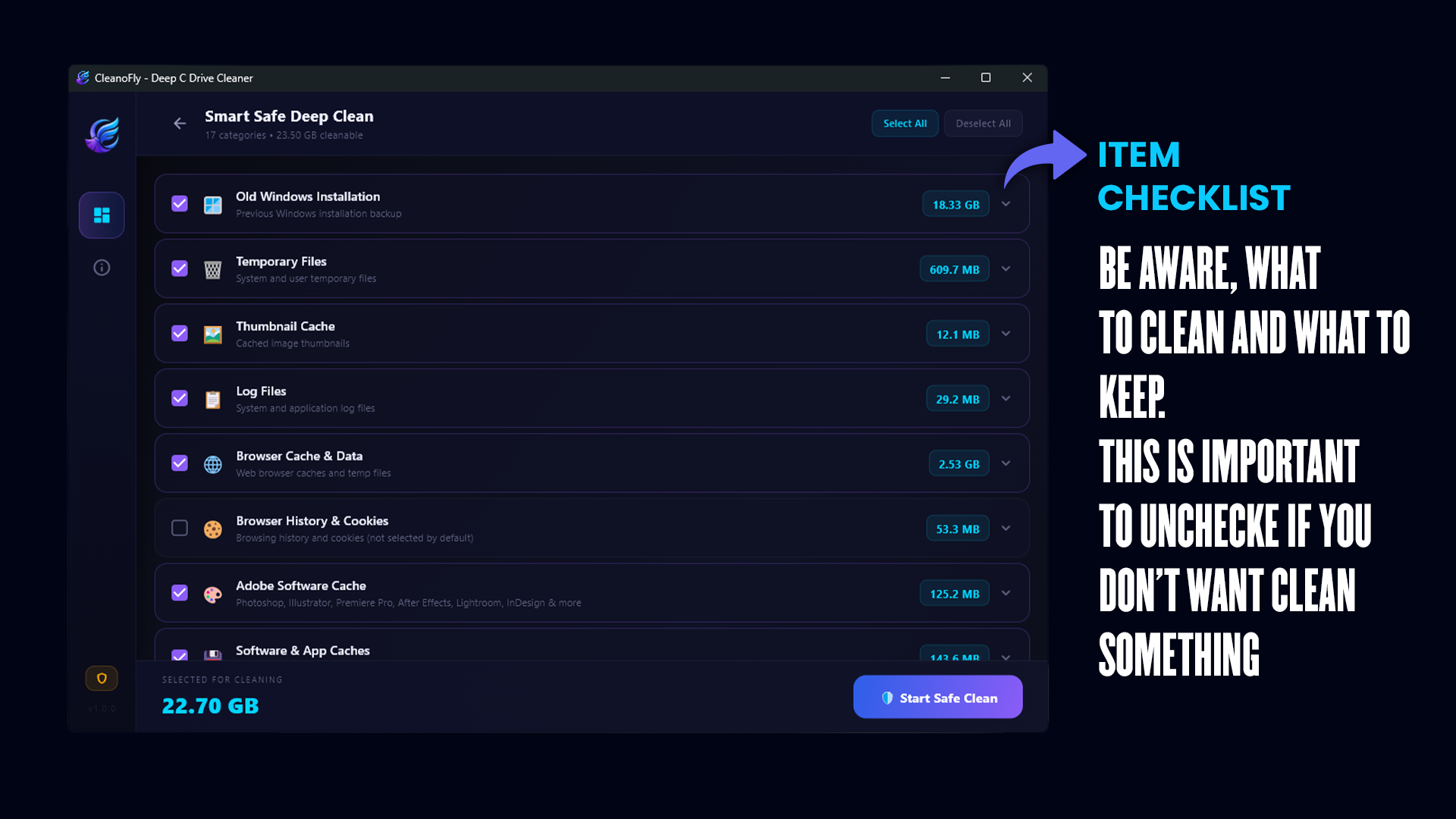
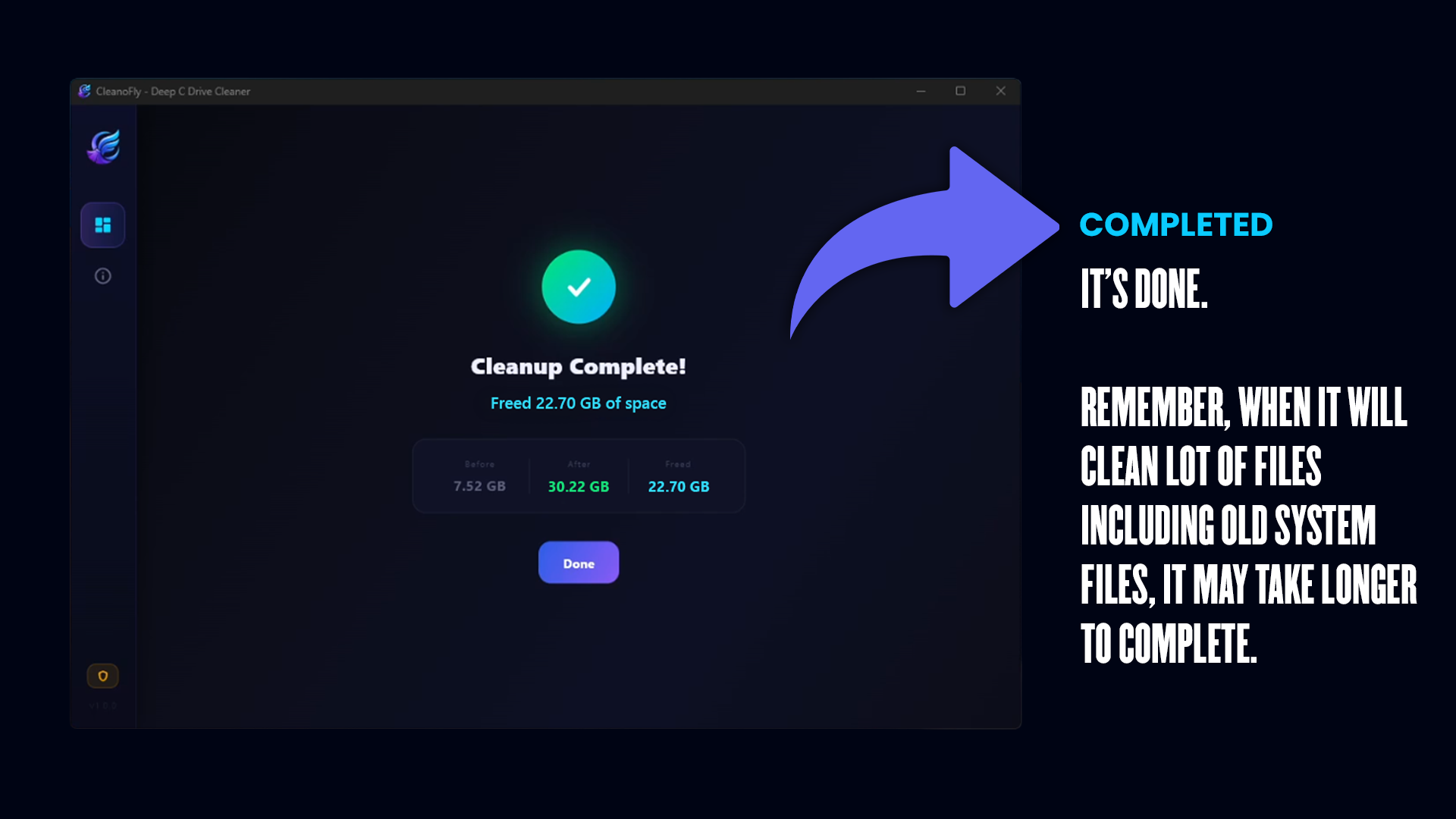
The interface is a lightweight, dark-mode dashboard with an instant disk-space visualizer, so you can see exactly how much space is being taken up before you commit to cleaning anything — and there are no ads baked into the app.
Smart Clean vs. Deep Clean: The Two Ways CleanoFly Cleans Your PC
This is the core of what makes CleanoFly different from typical “junk file” cleaners, so it’s worth explaining both modes in detail.
🟢 Smart Clean — Safe, Everyday Maintenance
Smart Clean is designed for people who want to free up space regularly without any risk of disrupting how their software behaves. When you run Smart Clean, CleanoFly scans and removes safe, regenerable junk — but it leaves your installed applications’ configurations, preferences, and login sessions exactly as they were.
What that means in practice:
- Your browser stays logged in, your saved passwords stay saved, and your bookmarks and extensions aren’t touched — only the disk-heavy cache is purged.
- Your creative apps (Photoshop, Premiere, Lightroom, etc.) keep their workspace layouts, preferences, and plugin settings intact — only leftover scratch and preview cache is cleared.
- Your chat apps keep you signed in and keep your conversation history — only the bloated media/thumbnail cache is removed.
- Developer tool configurations (npm/Yarn/pip registries, VS Code settings) remain untouched — only redundant build caches are cleared.
Think of Smart Clean as “the app equivalent of clearing your browser’s cache without logging you out of every website.” It’s the mode you can run weekly or monthly without a second thought.
🔴 Deep Clean — Maximum Space Recovery (Administrator Mode)
Deep Clean is for when Smart Clean isn’t enough — when you’re trying to reclaim as much space as physically possible, troubleshoot an app that’s misbehaving because of corrupted cache/config, or prep a machine for a fresh start. With your explicit administrator permission, Deep Clean goes further than Smart Clean: it clears out the same categories of junk plus resets application settings back to default, giving you the deepest possible clean of your C: drive.
Because this mode can reset app preferences, it requires you to grant administrator permission before it runs — CleanoFly won’t touch protected system-level and per-app data without you explicitly approving it first. This is intentional: a “reset everything” operation should never happen silently in the background.
When to use Deep Clean:
- You’re troubleshooting an app that’s acting strange and suspect a corrupted cache or settings file.
- You’re about to sell, retire, or hand off a PC and want it as close to a clean slate as possible.
- You’ve gone months without cleaning and Smart Clean isn’t recovering enough space.
- You just want the absolute maximum amount of free disk space and don’t mind reconfiguring a few app preferences afterward.
When to stick with Smart Clean: everyday maintenance, or any time you don’t want to touch app settings — for example, if you’ve spent time customizing Premiere Pro’s workspace or Discord’s notification settings and don’t want to redo that setup.
What CleanoFly Actually Cleans: A Category-by-Category Breakdown
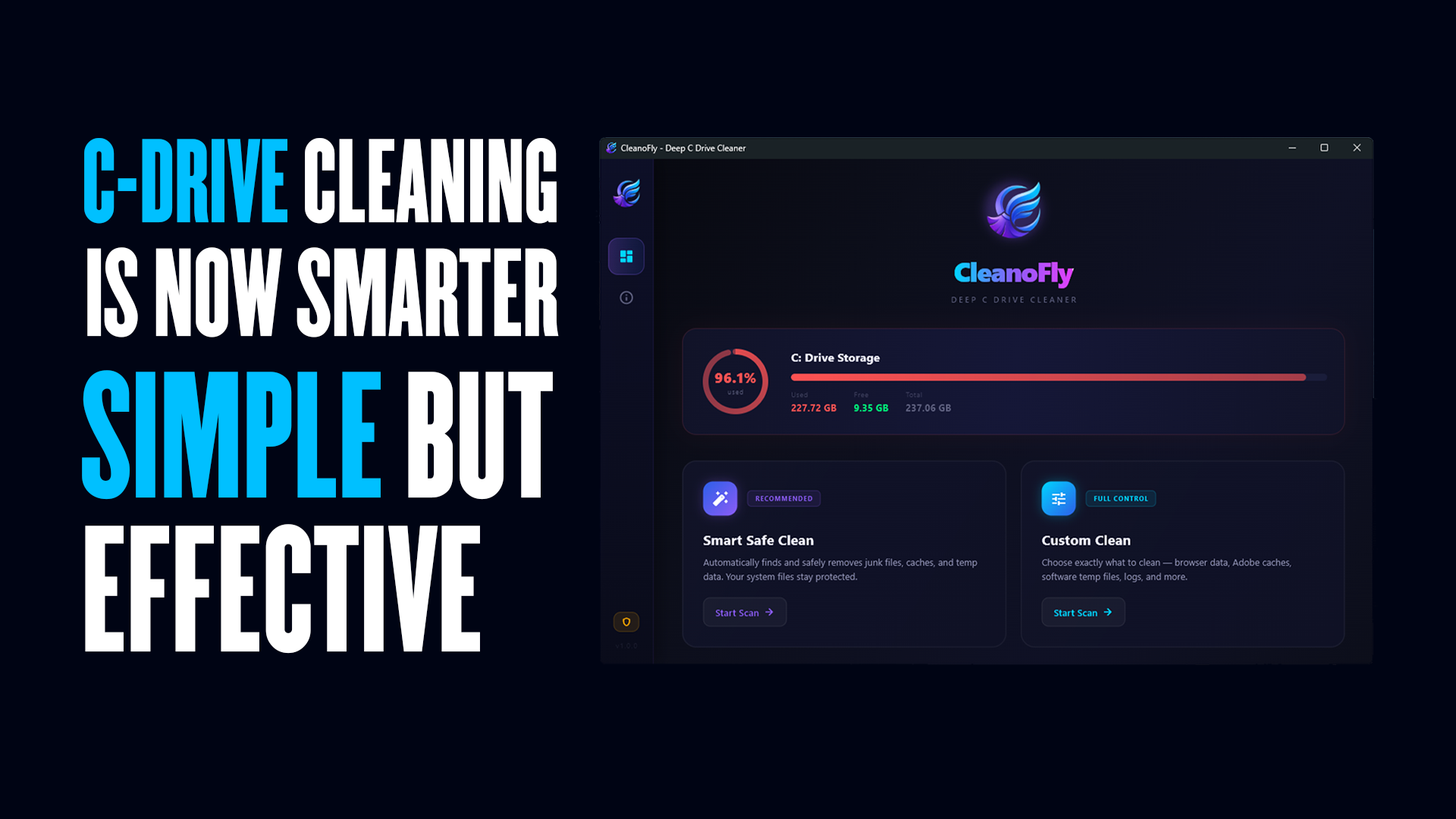
CleanoFly organizes its cleaning across specific, named target categories rather than a vague “junk files” bucket. Here’s what falls under each:
1. Windows Update & System Temp Files
Old Windows Update download caches, obsolete installer packages, and temporary crash/error report files that Windows keeps around long after an update has already been installed successfully.
2. Browser Cache & Junk (Chrome, Edge, Firefox, Brave, Opera, Vivaldi)
CleanoFly covers all six major Chromium- and Gecko-based browsers, clearing disk-heavy cache, GPU/DirectX shader compilation caches, and temporary streaming data — while explicitly preserving your saved logins and passwords. You don’t get logged out of your accounts to save disk space.
3. Adobe & Creative Suite Cache
This is one of CleanoFly’s more specialized categories, and it’s a big one for anyone doing video or photo work:
- Premiere Pro & After Effects: media caches, audio peak files, and preview render files.
- Photoshop & Illustrator: scratch disk space and temporary project cache.
- Lightroom & InDesign: thumbnail caches and orphaned preview databases.
These caches are notorious for silently consuming tens of gigabytes on a primary C: drive, even when your actual project files live elsewhere — CleanoFly cleans them across all local drives, not just C:.
4. Messenger & Chat App Cache
- WhatsApp & Telegram: cached video thumbnails and temporary media files.
- Discord & Microsoft Teams: Electron cache repositories and voice/video call temp storage.
- You can also use Custom Selection to manually review and choose exactly which apps and folders get cleaned, rather than relying purely on automatic detection.
5. Developer Leftovers
Build and package caches from VS Code, npm, Yarn, pip, and Gradle — the kind of thing that accumulates invisibly, project after project, for anyone who codes on their machine.
6. DirectX & GPU Shader Caches
Bloated shader compilation repositories generated by games and GPU-accelerated applications, cleared without affecting your installed games or drivers.
7. Thumbnail Caches
Windows Explorer’s thumbnail cache, which regenerates automatically and safely once cleared.
How CleanoFly Handles Safety and Privacy
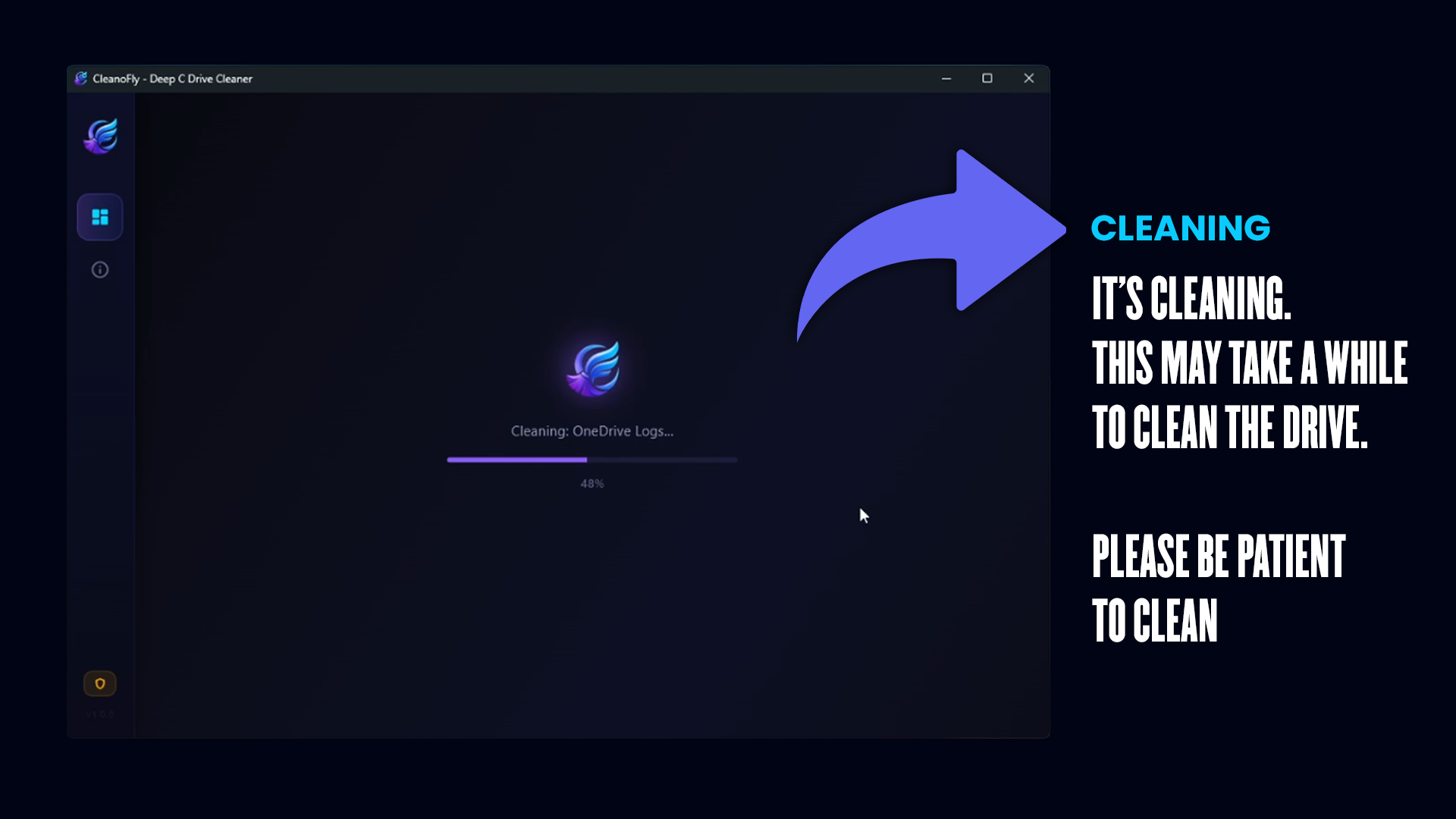
A tool that reaches into this many system and app folders needs to be trustworthy, and CleanoFly is built around a few clear principles:
- 100% local processing. Scanning and cleaning happen entirely on your device — nothing is uploaded anywhere.
- Cache only, not personal files. Your documents, photos, and projects are never targeted. CleanoFly is scoped to cache, temp, and scratch data, not your actual content.
- Logins and passwords are preserved, even in browser and messenger cleaning — you won’t get signed out of anything as a side effect of freeing up space.
- Deep Clean requires your explicit administrator approval before it resets any app settings, so a full reset never happens without you knowing.
- No ads. The app itself is ad-free, and it’s free to download and use — there’s no premium tier gatekeeping the core cleaning features.
Who Actually Benefits From This App
- Video editors and photographers drowning in Premiere/After Effects/Lightroom scratch and cache files that never seem to clear themselves.
- Gamers trying to reclaim SSD space from bloated DirectX shader caches without touching their game installs.
- Developers whose npm, pip, and Gradle caches quietly eat tens of gigabytes over the course of a few projects.
- Heavy chat app users — anyone who’s ever opened WhatsApp or Discord’s storage settings and been shocked by how much cached media has piled up.
- Anyone prepping to sell or hand off a laptop, using Deep Clean to reset app settings and clear as much data as possible before wiping personal files separately.
- Everyday Windows users who just want a one-click way to keep their C: drive from creeping toward “full” every few months.
CleanoFly vs. Manually Cleaning Your C Drive
Running Disk Cleanup or manually deleting temp folders will get you some space back, but it typically misses the categories that matter most on a modern machine — Adobe scratch files, per-app messenger caches, and DirectX shader caches aren’t part of Windows’ built-in cleanup tools at all. Manually locating and clearing these safely means digging through AppData subfolders app by app, which is slow and carries real risk of deleting something you actually need. CleanoFly’s value is in already knowing exactly where this junk lives across dozens of specific apps, and giving you the choice between a fully safe pass and a full reset — instead of you having to guess.
Frequently Asked Questions
Q
Is CleanoFly really free?
Yes. CleanoFly is 100% free to download and use, with no ads and no premium paywall on its core cleaning features. It’s distributed officially through the Microsoft Store.
Q
Does CleanoFly delete my personal files, like photos or documents?
No. CleanoFly is scoped to cache, temp, and scratch data only. It doesn’t target your personal documents, photos, or project files.
Q
Will Smart Clean log me out of my browser or apps?
No. Smart Clean specifically preserves login sessions, saved passwords, and app preferences — it only removes safe, regenerable cache and junk data.
Q
What’s the actual difference between Smart Clean and Deep Clean?
Smart Clean removes safe junk (browser cache, Windows Update leftovers, dev tool caches, etc.) while keeping every app’s settings and configuration exactly as they were. Deep Clean goes further with administrator permission, clearing the same categories at a deeper level and resetting application settings back to default for maximum space recovery.
Q
Why does Deep Clean need administrator permission?
Because Deep Clean can reset app settings and reach deeper, protected system and per-app data, it requires your explicit approval before running — so a full reset never happens without your knowledge.
Q
Does CleanoFly clean Adobe apps like Premiere Pro and Photoshop?
Yes. It has a dedicated Adobe & Creative Suite cleaning category covering Premiere Pro, After Effects, Photoshop, Illustrator, Lightroom, and InDesign — clearing scratch files, media caches, peak files, and orphaned preview databases across all local drives.
Q
Does it clean WhatsApp, Telegram, or Discord cache?
Yes. CleanoFly specifically targets cached video thumbnails and temp media in WhatsApp and Telegram, and Electron cache repositories plus voice/video temp storage in Discord and Microsoft Teams — without deleting chat history.
Q
Is CleanoFly safe to use — will it break my apps?
CleanoFly is designed around a “cache only” philosophy for its Smart Clean mode, meaning it targets data that apps are built to regenerate automatically. Deep Clean is more aggressive by design (resetting settings), which is why it requires explicit administrator approval rather than running automatically.
Q
What Windows versions does CleanoFly support?
CleanoFly supports Windows 10 and Windows 11 (64-bit).
Q
Where can I download CleanoFly?
CleanoFly is available directly from the official Microsoft Store — see the link below.
Get CleanoFly and Reclaim Your C Drive Today
If your C: drive is creeping toward full and Disk Cleanup isn’t cutting it, CleanoFly is worth the two minutes it takes to install. Run Smart Clean for a safe, no-risk pass that leaves every app exactly how you configured it — or go with Deep Clean when you want the deepest possible sweep with full control over the process.
👉 Install CleanoFly free from the Microsoft Store
Want the full technical rundown — screenshots, version history, and the complete list of cleanable targets — before you install? Check out the detailed CleanoFly software page.
It’s 100% free, ad-free, and built to give you back the disk space these apps have been quietly hoarding for months.