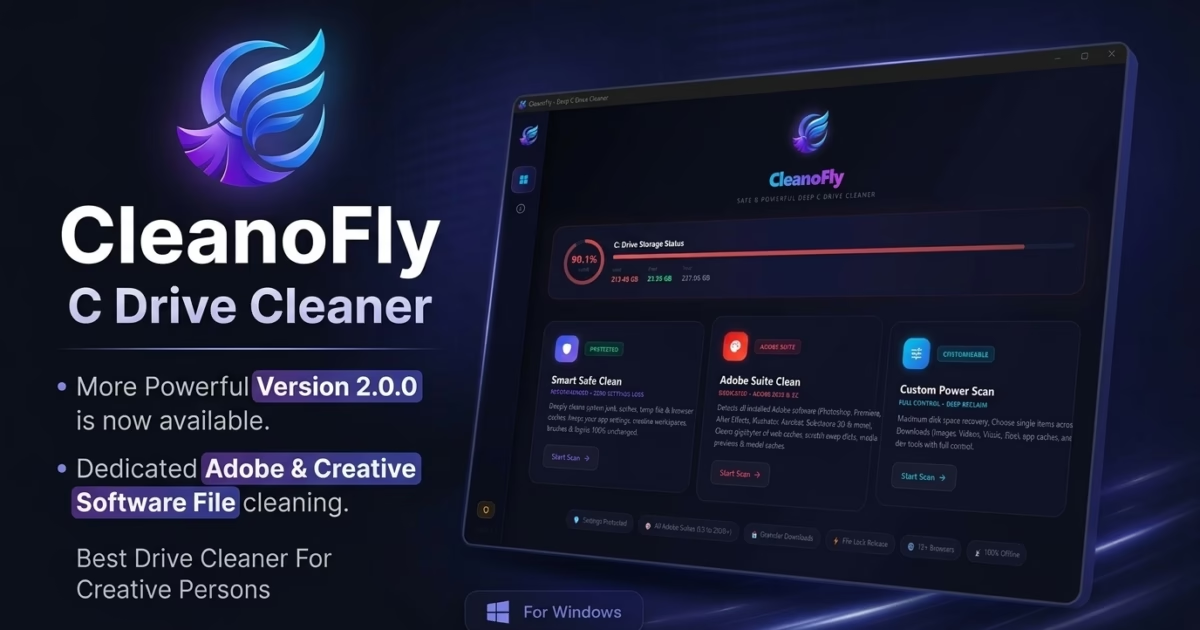
The Ultimate Problem Solver for Creative Pros: CleanoFly v2.0.0.0 is officially live on Windows 10 and Windows 11. Engineered as the best c drive cleaner for power users and digital creators, version 2.0 is almost 10X more powerful than standard cleaning software and 4-5X more powerful than most premium drive cleaners. By introducing a dedicated deep-cleaning engine for Adobe and creative applications, CleanoFly eliminates the chronic storage bottleneck without altering any software settings.
If you ask graphic designers, video editors, 3D animators, or photographers about their biggest Windows frustration, the answer is almost never CPU or GPU speed. It is the sudden, project-halting crisis of the C: drive turning red, accompanied by the dreaded “Scratch disks are full” alert or sluggish timeline scrub in Adobe Premiere Pro and After Effects.
Here is the uncomfortable truth: most C drive cleaners are not capable of cleaning Adobe files, creative software files, and deep workstation caches. Generic PC cleaners and native Windows utilities were built to wipe standard browser cookies and empty the Recycle Bin—reclaiming a measly 2GB to 3GB while leaving 40GB to 80GB of toxic, locked creative bloat completely untouched.
Adobe applications create immense volumes of temporary files, conform audio databases, scratch swap pages, and pre-rendered caches during everyday work. These files must be cleaned regularly to use your PC perfectly, maintain peak SSD throughput, and prevent devastating project freezes. CleanoFly 2.0 was built specifically to be the ultimate problem solver for all creative persons—giving you deep, non-destructive cleaning power that typical utilities cannot match.
Reclaim 30GB to 100GB+ on Your C: Drive Right Now
Experience 10X more cleaning power than generic tools. Deeply purge Adobe cache, Windows system junk, and hidden temp files with the free c drive cleaner CleanoFly v2.0.
Why Most C Drive Cleaners Are Incapable of Cleaning Creative Software
Open any popular utility—whether it is CCleaner, BleachBit, Windows Disk Cleanup (cleanmgr.exe), or Windows 11 Storage Sense. Run a full scan. What do they report? A few temporary web files, thumbcaches, and error logs.
Meanwhile, your primary drive remains completely choked. Why? Because traditional cleaners have a massive architectural blind spot:
❌ Blind to Adobe AppData Hierarchies
Standard cleaners do not index deep application repositories such as %AppData%\Adobe\Common\Media Cache Files, Lightroom Camera Raw (ACR) preview caches, or After Effects disk cache hierarchies.
❌ Stopped by Background File Locks
Adobe background processes—such as Adobe CEF Helper, Adobe IPC Broker, and Creative Cloud Desktop—maintain active file locks. Generic cleaners give up when encountering a locked file, throwing silent errors.
❌ Adobe’s Own “Delete Unused” Flaw
Adobe’s built-in preference button only purges cache tied to currently cataloged projects. If you moved, renamed, or completed a project weeks ago, its gigabytes of peak waveform data are permanently orphaned and ignored.
Why Creative Software Demands Regular Deep Cleaning to Use Your PC Perfectly
Creative suites are computational heavyweights. Every single interaction in modern visual software generates disposable high-bandwidth scratch data:
-
Adobe Photoshop: Generates massive virtual memory scratch files (
Photoshop Temp*) whenever you work on high-resolution canvases, multi-layered smart objects, or RAW imagery. A single intensive session can write 20GB to 50GB of temporary scratch disk data that fails to delete if Photoshop closes unexpectedly. -
Adobe Premiere Pro: Builds uncompressed audio conforming files (
.cfa) and visual peak waveforms (.pek) for every audio channel in every video clip. Over a few weeks of editing, your Media Cache easily balloons to 60GB–100GB+. - Adobe After Effects: Saves pre-rendered RAM preview frames, roto-brush masks, and camera tracker data into disk cache. When the disk runs low, render queue exports crash and playback stutters.
-
DaVinci Resolve & Blender: Generate massive
CacheClipfolders, temporal noise reduction buffers, and shader compilation caches.
When these files are left to accumulate, your solid-state drive loses its write-amplification efficiency, Windows paging files degrade, applications stutter, and projects freeze. Regularly cleaning these files is an absolute necessity to use your PC perfectly.
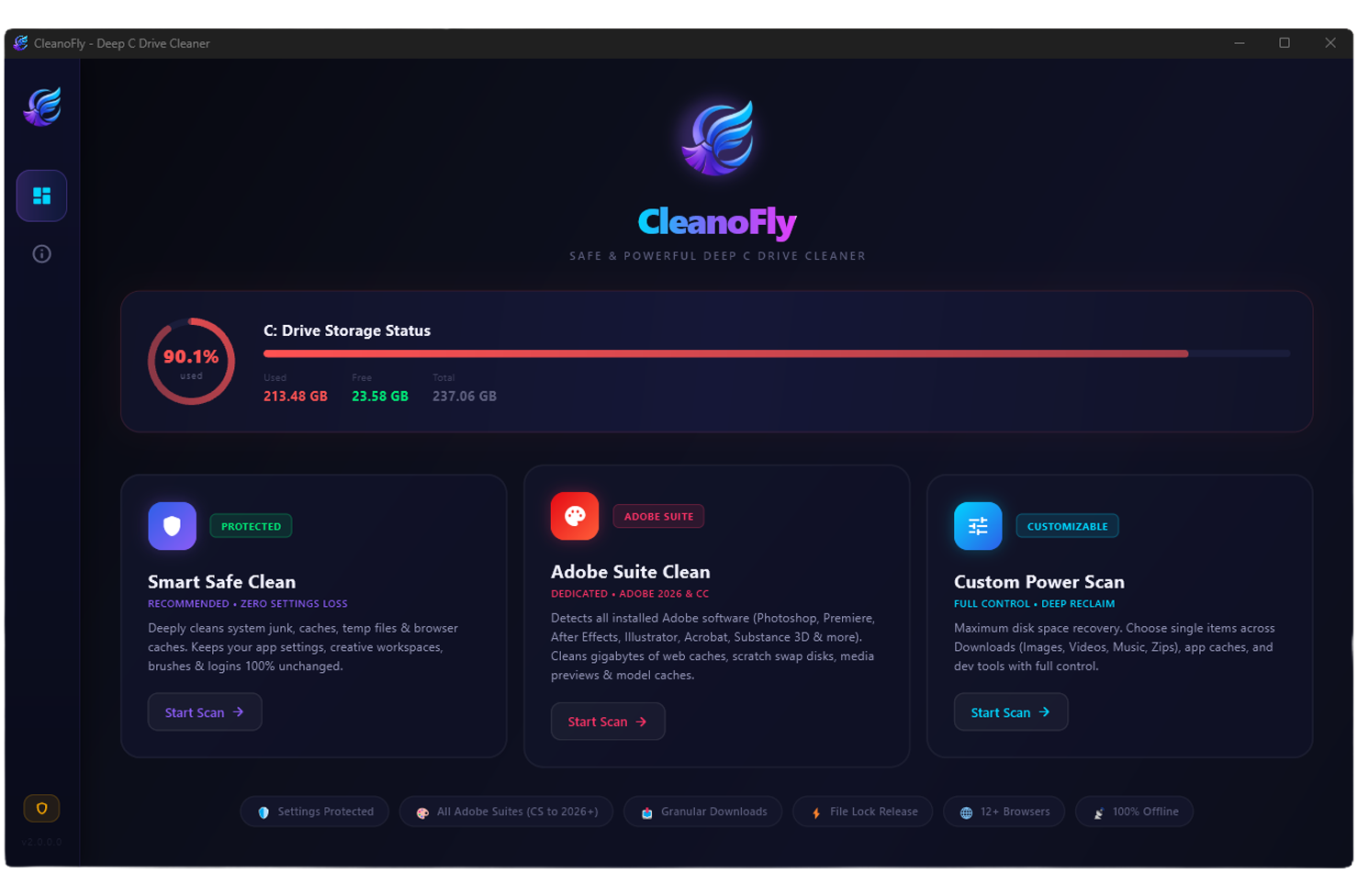
Figure 1: CleanoFly v2.0.0.0 featuring its dedicated Creative Suite & Adobe Cache cleaner alongside complete Windows system junk modules.
Why CleanoFly 2.0 is 10X More Powerful Than Most Drive Cleaners
CleanoFly v2.0.0.0 was created to shatter the limitations of existing cleaners. It is almost 10X more powerful than typical cleaning software and 4-5X more powerful than most premium drive cleaners because it tackles both layers of storage bloat: standard Windows clutter AND deep creative workstation caches.
Most importantly: Without changing a single software setting, CleanoFly automatically detects default and custom cache paths across all internal and secondary drives. There is no need to manually alter scratch disk preferences in Photoshop or reconfigure media databases in Premiere Pro.
Zero Risk Guarantee: Why CleanoFly is 100% Safe for All Creators
Every creative pro has the same legitimate fear: “Will running this delete my master PSD artwork, my Premiere sequences, my custom brushes, or my client deliveries?”
CleanoFly was designed from the ground up to guarantee non-destructive precision:
🛡️ Safe Deep Clean Engineering
- Personal & Project Files Segregated: CleanoFly strictly targets cache, temporary virtual memory, and conform files. Your master
.psd,.prproj,.aep,.drp, or.blendfiles are completely untouched. - Presets, Brushes & LUTs Protected: Custom brush sets, action macros (
.atn), workspace layouts, and color lookup tables (LUTs) remain fully intact. - Software Activations & Accounts Safe: Your Adobe Creative Cloud login state, software licenses, and cloud sync credentials are never disrupted.
- Smart File Unlock: Gracefully closes dangling background file handles held by Adobe CEF Helper and IPC Broker, deleting stuck junk without destabilizing running software.
How to Deep Clean C Drive on Windows 10 & 11 with CleanoFly
Whether you are searching for how to deep clean c drive, looking for the best c drive cleaner for windows 11, or seeking regional answers like c drive clean kaise kare, laptop me c drive clean kaise kare, or c drive clean korbo kivabe, executing a c drive full clean up with CleanoFly v2.0 takes under 60 seconds:
Download and Launch CleanoFly
Get the official c drive cleaner download from the Microsoft Store or learn more on our official CleanoFly Software Hub. The app is lightweight, privacy-focused, and launches in seconds.
Choose 1-Click Smart Clean or Custom Scan
Use Smart Safe Clean for an immediate, risk-free purge of recommended junk, or switch to Custom Power Scan to inspect specific categories—such as Windows Update files, Downloads, Chat Apps, or the dedicated Creative Software Cache.
Click Clean and Reclaim Enormous C: Drive Space
Press the clean button. CleanoFly’s 100% Deletion Power engine handles background locks, safely purges the accumulated junk, and restores massive headroom to your solid-state drive instantly.
Frequently Asked Questions (FAQ)
Why are most C drive cleaners incapable of cleaning creative software files?
Most cleaners only scan standard system temporary folders and web browsers. They have no scanning logic for Adobe Media Cache, After Effects disk cache, or DaVinci Resolve CacheClip, leaving tens of gigabytes of creative files untouched.
Why is CleanoFly considered 10X more powerful than standard drive cleaners?
Standard cleaners typically recover only 2GB to 5GB of superficial browser files. CleanoFly deep cleans Windows system updates, downloads installers, messaging blobs, and full creative suite caches, typically recovering 30GB to 100GB+ of valuable storage.
Do I need to change any Adobe or Windows software settings?
No. Without changing any software settings, CleanoFly automatically scans default and custom creative directories deeply and purges them with complete safety.
Will cleaning Adobe cache delete my active project files?
No. CleanoFly strictly targets scratch swap files and pre-rendered preview databases. Your actual project files (.psd, .prproj, .aep), raw footage, assets, and export outputs remain completely untouched.
Keep Your C: Drive Fast, Clean, and Running at Peak Performance
Say goodbye to low disk warnings, frozen timelines, and sluggish Windows performance. Visit our official software hub to inspect technical specifications, review screenshots, and download CleanoFly v2.0 for Windows.