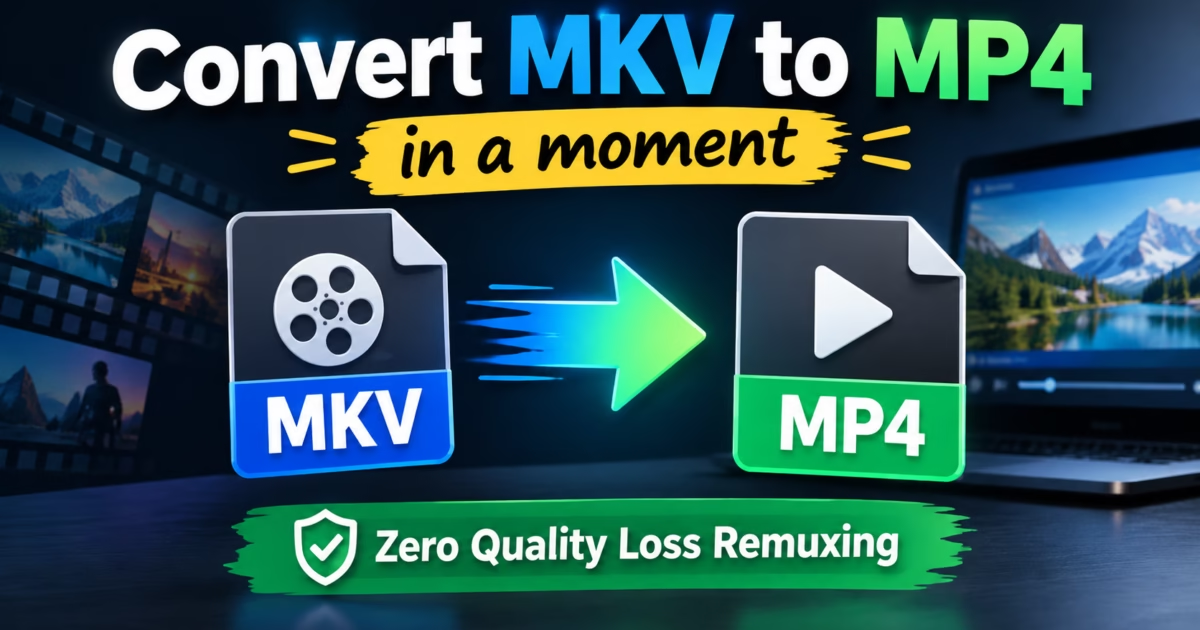
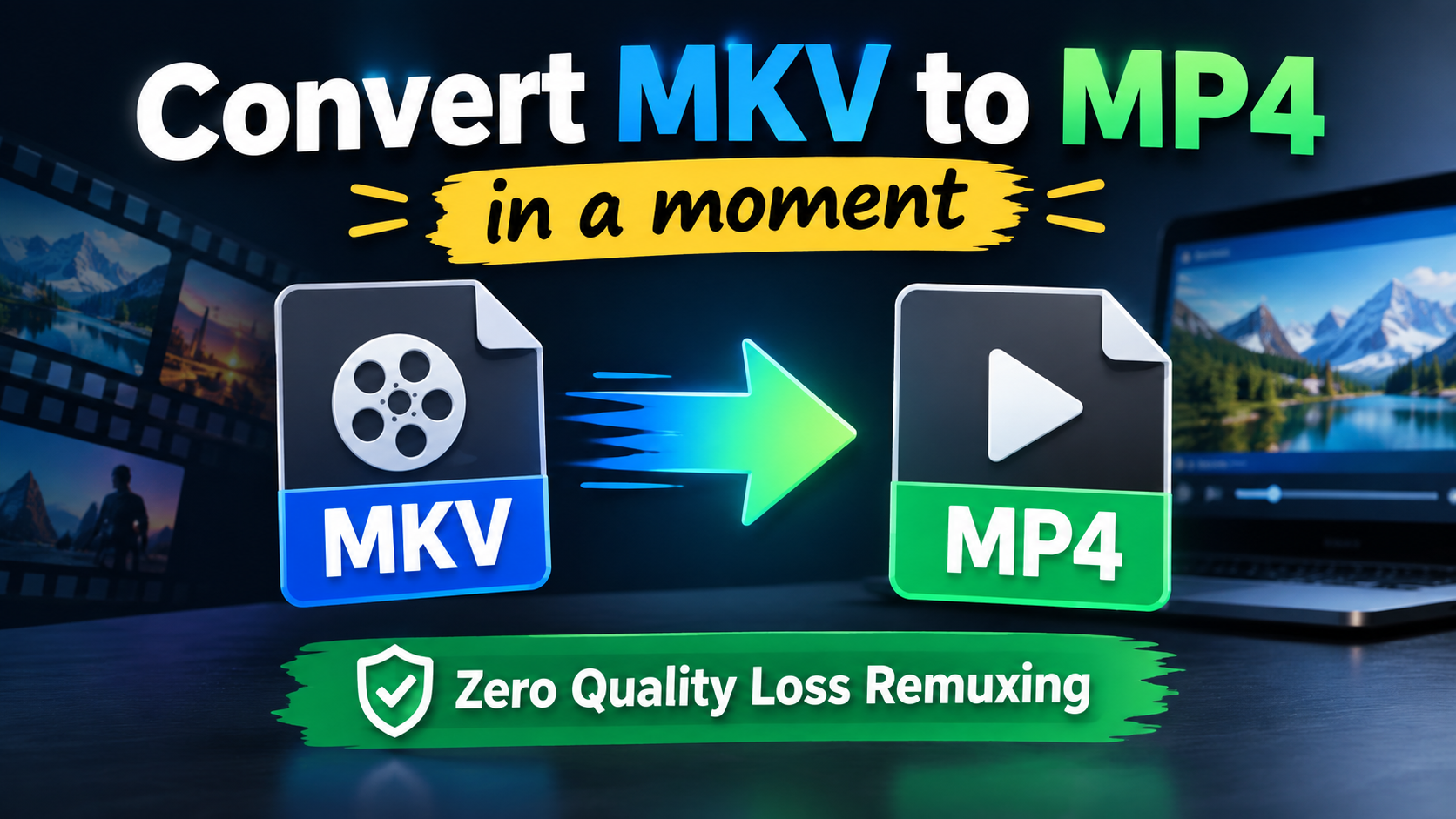
Editorial Technical Solution: When you need to Convert MKV to MP4 on Windows 11, lossless stream remuxing is essential. Specifically, this comprehensive guide reveals how to repackage Matroska containers into universal MP4 files in under 3 seconds with zero generation loss. In addition, we explain how Piludi Video Converter leverages lossless stream copying and GPU acceleration to eliminate slow encoding times.
When you need to Convert MKV to MP4 on Windows 11, traditional re-encoding utilities waste immense amounts of time and degrade video quality. Video creators, movie collectors, and everyday users routinely face playback rejection when copying Matroska (.mkv) video files onto Smart TVs, gaming consoles (PlayStation / Xbox), iPad tablets, or video editing timelines like Adobe Premiere Pro and DaVinci Resolve. The container displays an “Unsupported Format” error. Furthermore, when users search for a solution, generic video converters attempt to re-encode the entire movie from scratch. The process consumes 45 minutes, sends CPU temperatures soaring, and introduces visible compression artifacts.
The Container Barrier: Matroska vs MPEG-4 Explained
To understand how 3-second conversions are achieved, you must first separate the video container from the underlying video codec. A multimedia file is simply a digital envelope. The envelope holds compressed video packets, audio tracks, and subtitle streams.
The Matroska (MKV) Container Specification is an exceptionally flexible open-standard envelope capable of holding virtually any video or audio format, multiple audio channels, and stylized subtitle tracks. However, commercial hardware manufacturers often omit MKV splitters from their firmware due to licensing considerations. Conversely, the ISO/IEC 14496-14 (MP4) Standard is universally supported by every hardware television, operating system, and mobile device manufactured in the last two decades.
Transcoding vs Lossless Stream Remuxing: The 3-Second Secret
In 90% of MKV files, the video stream inside is already encoded using standard H.264 (AVC) or H.265 (HEVC) compression. The video data itself is already 100% compatible with MP4 standards. The only incompatibility is the outer Matroska envelope.
When a generic converter processes an MKV file, it performs full transcoding: it decompresses every video frame into raw memory and compresses it again from scratch. This introduces generation loss, washed-out color saturation, and massive CPU heat. In contrast, Piludi Video Converter utilizes Lossless Stream Copying (Remuxing). Instead of recalculating pixels, Piludi extracts the compressed H.264/HEVC bitstream packets directly from the Matroska container and re-wraps them into compliant MP4 headers. Because no pixels are altered, processing speed is constrained only by your SSD drive read/write speed. A 4GB full-length movie converts in under 3 seconds with absolute zero loss of quality.
The Cloud Converter Trap: Watermarks, File Limits & Privacy Leaks
Desperate for a quick format change, millions of users turn to browser-based video converter websites. However, free web portals impose severe limitations:
- Extremely Restrictive Size Limits: Cloud portals restrict uploads to 100MB or 200MB, rendering them useless for 4K video clips, drone footage, or movies.
- Aggressive Watermark Extortion: Shady web converters burn massive watermarks directly across your video frames, demanding subscription fees for clean exports.
- Confidentiality Exposure: Uploading private home videos, commercial footage, or confidential corporate presentations to unknown web servers violates privacy protocols.
- Painful Upload Bandwidth: Uploading multi-gigabyte video files over home internet connections takes hours, whereas local desktop processing finishes in seconds.
Windows 10 & 11 Desktop Video Suite
Convert MKV to MP4 with 100% Quality Retention in Piludi Video Converter
Remux MKV, MOV, and AVI containers into universally compatible MP4 files in seconds on your local PC. Enjoy lossless stream copying, multi-threaded batch operations, and zero cloud uploads with Piludi – Video Converter.
Step-by-Step Blueprint: How to Convert MKV to MP4 in 3 Seconds
Follow this direct engineering workflow to Convert MKV to MP4 on Windows 11 with zero quality loss:
Launch Piludi Video Converter & Import MKV Files
Open Piludi – Video Converter on your Windows PC. Drag and drop your MKV or MOV video files directly into the conversion queue. Furthermore, you can select multiple high-definition videos simultaneously for batch remuxing.
Select Output Container as MP4 & Toggle ‘Lossless Stream Copy’
In the target format menu, select MP4 (MPEG-4 Part 14). Check the Lossless Stream Copy (Direct Remux) toggle. This instructs the engine to bypass CPU re-encoding and transfer the raw H.264/HEVC bitstream directly into the MP4 container.
Click Convert & Enjoy Instant Universal Playback
Click Start Conversion. The progress bar completes in less than 3 seconds. The output MP4 file contains the exact same audio and video bitstream, ready for flawless playback on your Smart TV, iPad, or video editing timeline.
GPU Hardware Acceleration: When Codec Transcoding Is Necessary
While lossless stream copying is ideal for H.264/HEVC streams, certain legacy files contain codecs that MP4 cannot natively wrap (e.g., Google VP9 or legacy WMV). In these scenarios, full transcoding is required.
Piludi Video Converter incorporates direct hardware acceleration hooks for modern GPU silicon:
- NVIDIA NVENC Engine: Harnesses dedicated Tensor and NVENC silicon cores on GeForce RTX and GTX cards to accelerate H.264 and HEVC exports up to 30x faster than CPU processing.
- Intel Quick Sync Video (QSV): Leverages dedicated media processing blocks on Intel Core and Intel Arc processors for ultra-fast, low-power video encoding.
- AMD Advanced Media Framework (AMF): Utilizes AMD Radeon VCN hardware encoders for accelerated multi-stream video export pipelines.
Conversion Method Comparison: Lossless Remuxing vs Transcoding
The following matrix contrasts lossless stream copy remuxing with conventional re-encoding across typical video scenarios:
Frequently Asked Questions on MKV to MP4 Conversion
Can lossless stream copy remuxing fix audio out-of-sync problems in MKV files?
Yes. Many MKV files suffer from desynchronized audio because bad encoders dropped timeline timestamp packets. When Piludi remuxes the file into MP4, it re-indexes Presentation Time Stamps (PTS) according to MPEG-4 container standards, resolving audio drift across your media players.
Does Piludi Video Converter support batch conversion of hundreds of video files?
Yes. You can import entire folders of MKV, MOV, AVI, and MP4 video files into Piludi Video Converter. The multi-threaded queue processes multiple video files concurrently, utilizing all available CPU and GPU pipelines to convert large libraries in minutes.
Can I extract MP3 audio directly from an MKV video file?
Yes. Piludi Video Converter includes dedicated audio extraction profiles. You can select your MKV video file and choose MP3 (up to 320kbps), WAV, or FLAC as the target format to strip the soundtrack or dialogue without saving the video stream.
Experience Native Desktop Speed with DesignoFly Studio
Discover clean, privacy-first Windows 10 & 11 software crafted for creators and power users. No cloud uploads, no recurring subscriptions, and complete desktop autonomy.